
Why don't I have access to the surfbar and click ads?
Advertisers invest money in their advertising campaigns and expect us to fully display their websites in the Surfbar or the Click Ads, to the respective target audience. This also includes online advertising such as banners or text links. Online advertising is what enables many advertisers to book campaigns in the first place.
If you currently don't have access to the surfbar or click ads, check your browser settings and make sure all page elements can be displayed. Common causes include:
- Disable AdBlocker: AdBlockers must always be disabled.
- Page elements & cookies: The browser must not block individual elements or cookies — see the instructions below.
- JavaScript and images: The browser (we recommend Mozilla Firefox or Google Chrome) must be able to load JavaScript and images.
- Check antivirus software: In some rare cases, antivirus software such as Kaspersky Internet Security may have an optional AdBlocker built in.
Mozilla Firefox: Allow page elements
If you are using Mozilla Firefox, please check whether the Content Blocking feature is enabled.
Open Mozilla Firefox and go to the Menu in the top right corner, then click Content Blocking, see:
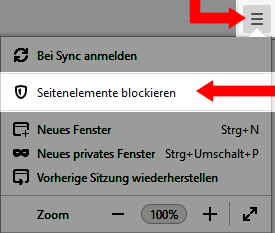
Firefox will open a page where you can allow page elements. To ensure all websites are displayed correctly, the following settings must be applied:
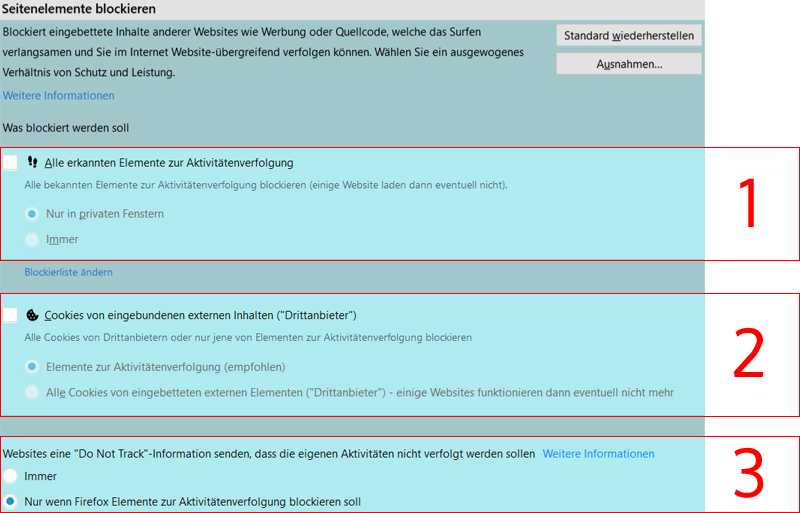
Setting 1
- The checkbox for All detected tracking elements must be unchecked
- Before that, make sure that under All detected tracking elements, the option Only in private windows is selected.
Setting 2
- The checkbox for Cookies from embedded third-party content ("Third-party") must be unchecked.
- Before that, make sure that under Cookies from embedded third-party content ("Third-party"), the option Tracking elements (recommended) is selected.
Setting 3
- Under Cookies from embedded third-party content ("Third-party"), the option "Only when Firefox is set to block tracking" must be selected.
Google Chrome: Disable "Do Not Track"
If you are using Google Chrome, disable the Do Not Track setting.
Open Google Chrome and go to the Menu in the top right corner, then click Settings.
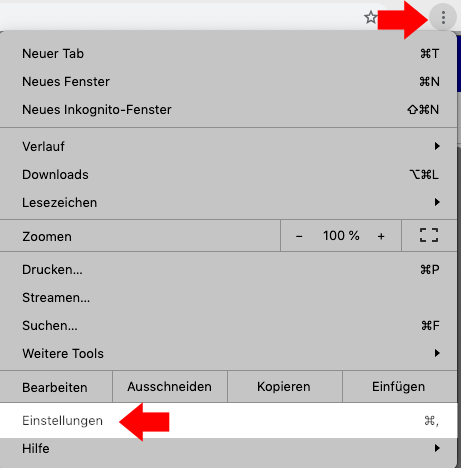
At the top of the browser there is a search field. Search for the term Do Not Track.

You will see the option Send a "Do Not Track" request with your browsing traffic. Make sure the toggle on the right is disabled, see: